From ChatGPT or Claude AI Conversation to Beautiful PDF
Saving an AI conversation as a PDF is easy. Getting a clean, polished, shareable document is the part that matters. Here's the simplest way to do it.
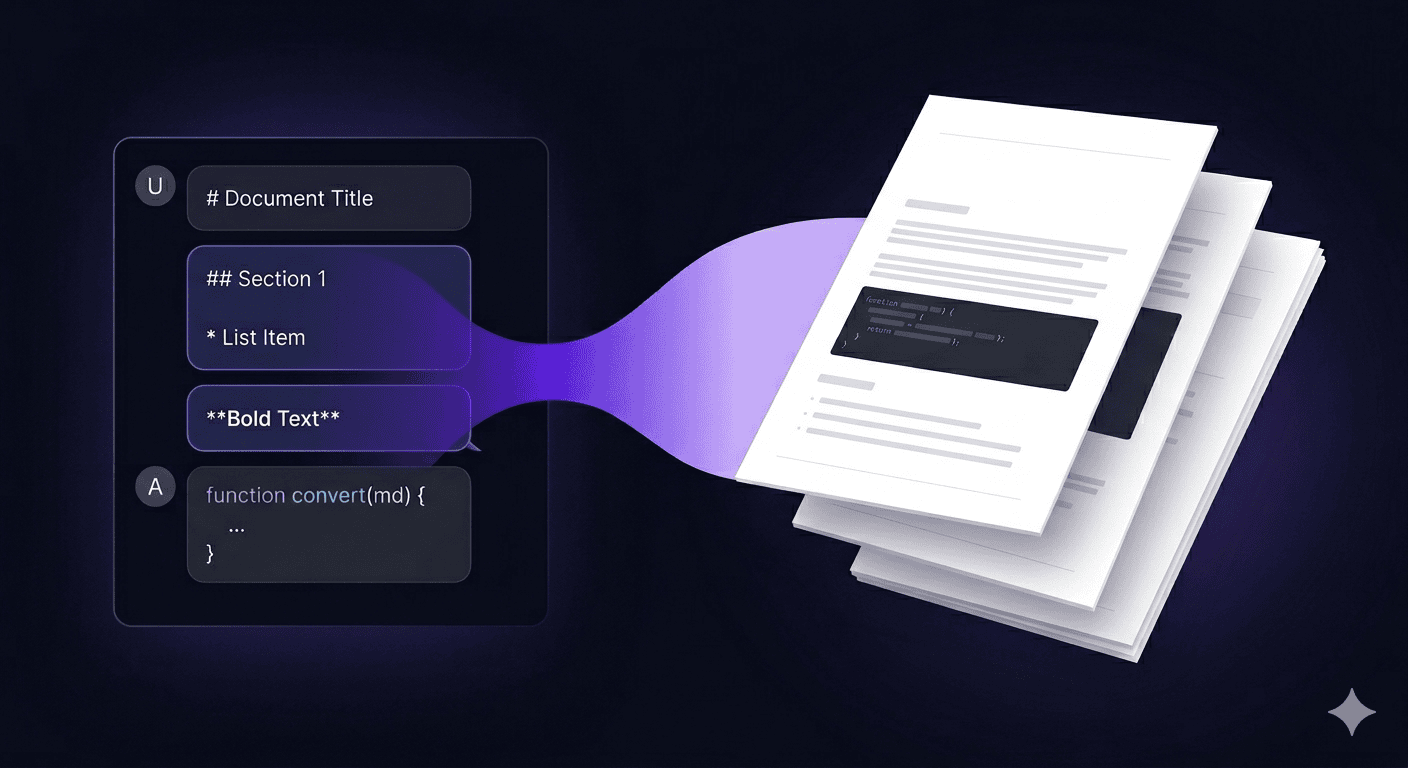
Let's start with the obvious part: saving a ChatGPT or Claude AI conversation as a PDF is easy. The problem is that most exported PDFs still don't feel good when you open them. They look like copies of a chat, not like real documents. And that's the real difference: getting a PDF is simple, but getting a PDF that looks clean, readable, and ready to share is the part that matters. If you're saving notes for yourself, almost any method works. If you're sending a summary, report, draft, proposal, handout, or research notes to someone else, formatting starts to matter a lot. This guide shows the simplest ways to do it, and when it makes sense to use a tool like MarkPDF.
#3 simple ways to save a ChatGPT or Claude conversation as PDF
Here are the three practical options most people use:
| Method | What it gives you | What it costs you |
|---|---|---|
| ✅ Ask ChatGPT or Claude directly | A quick PDF in seconds | Often looks plain and generic |
| ⚠️ Browser print (Cmd/Ctrl + P) | A saved version of the conversation | Usually keeps too much of the chat interface |
| ★ Paste into a document-style PDF tool | A cleaner, more polished document | Takes a little longer, but looks much better |
All three work. The difference is in how the final document feels.
#Method 1 — Ask the AI to export it
This is the fastest option.
You ask ChatGPT or Claude to turn the conversation into a PDF, and you get a file back quickly.
For personal use, this is often enough.
It works well when you want to:
- save a conversation for yourself
- archive notes
- keep a quick reference copy
- send something informal to a teammate
#What you get
A PDF that:
- ✅ Includes the content you need
- ✅ Is fast to generate
- ✅ Is fine for internal or personal use
- ⚠️ Usually looks plain
- ⚠️ Rarely feels presentation-ready
- ⚠️ Gives you very little control over the final appearance
#Where it falls short
The moment you want the PDF to look professional, neat, or polished, this method starts to feel limited.
That's especially true if you're sharing:
- a client summary
- a school document
- a meeting recap
- a research note
- a proposal
- a document you might print or archive properly
#Method 2 — Browser Print
You know this one. Cmd/Ctrl + P, save as PDF.
It's quick, but it's usually the messiest result:
- The ChatGPT sidebar ends up in the PDF (unless you manually collapse it).
- Code blocks frequently break mid-line at page boundaries.
- Message bubbles, timestamps, and hover buttons all render as visual noise.
- You have no control over fonts, spacing, or page size.
It's useful when you're in a hurry, but not when you want something clean.
Use it for throwaway snapshots, not for documents you actually care about.
#Method 3 — Turn the conversation into a real document
This is the option that makes sense when you want the result to look good.
Most AI conversations already contain structure: headings, lists, quotes, tables, code blocks, sections, summaries.
Instead of exporting the chat exactly as it appears on screen, you take the useful content and place it into a cleaner document layout.
That changes everything.
The result feels less like "a saved chat" and more like:
- a report
- a brief
- a handout
- a polished summary
- a proper PDF you can actually send to someone
#What a theme actually changes
This is the part that's hard to convey in writing, so here's a concrete example.
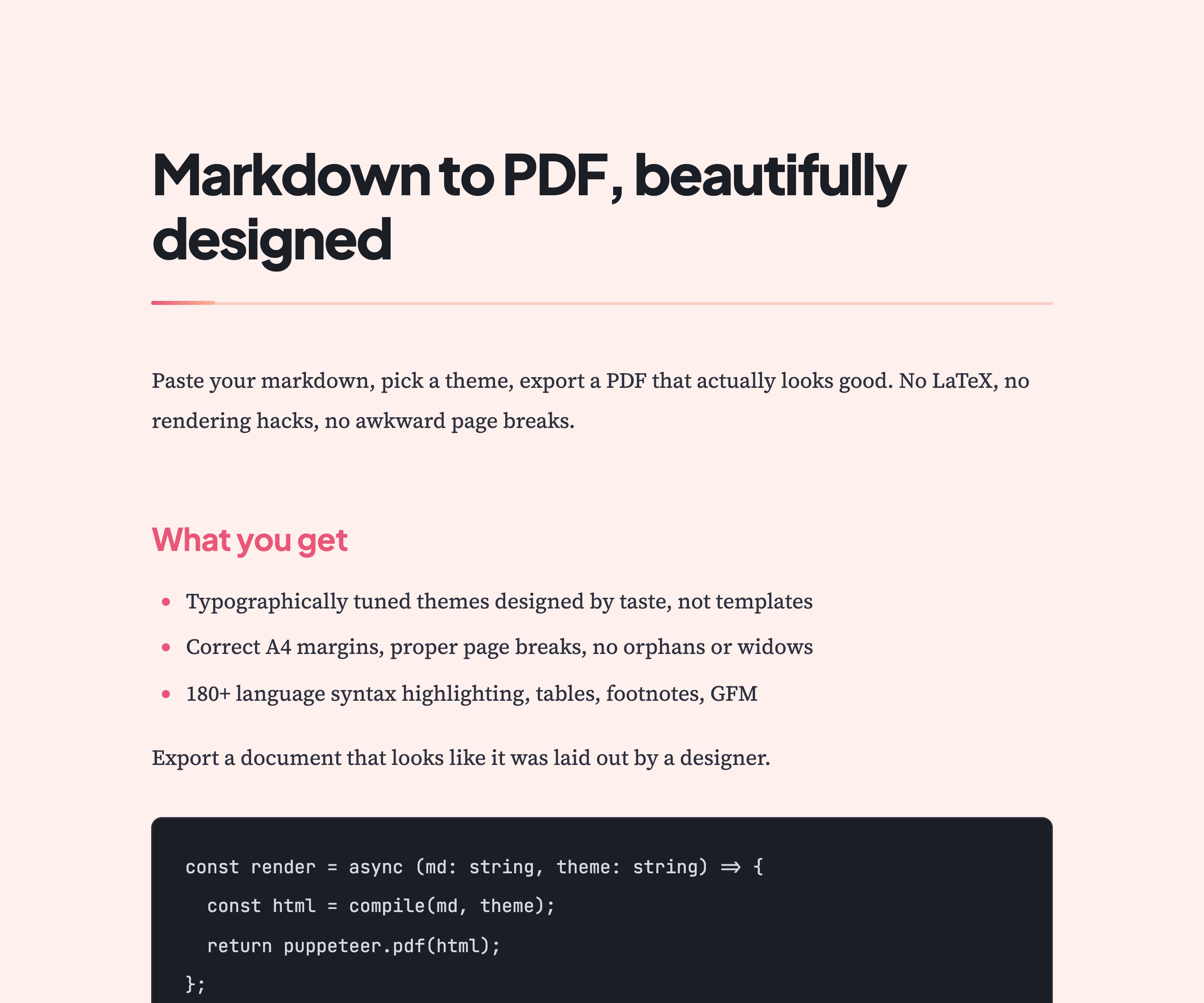
A theme changes how the PDF feels to read.
It improves things like:
- readability
- spacing
- visual hierarchy
- page balance
- code block styling
- table clarity
- the overall sense that this is a real document, not just a copied chat
The difference between "an AI exported this" and "this looks ready to share" usually comes from those details.
#When Method 3 is worth the extra 30 seconds
- You're sending the document to a client or prospect.
- You're building a portfolio, proposal, or report deck.
- You're publishing externally (blog post, whitepaper, case study).
- You want to print it and feel good about what comes out.
- The document needs to match your brand.
If none of those apply, Method 1 is still perfectly fine.
#How MarkPDF fits in
MarkPDF is built for the moment when you want more than "just save this chat as PDF."
It's for when you want control over how the final document looks.
The workflow is simple:
- Take the content from ChatGPT or Claude AI.
- Paste it into MarkPDF.
- Choose a theme.
- Export a cleaner, more polished PDF.
That extra step gives you a much better result.
MarkPDF is especially useful for:
- students
- consultants
- writers
- researchers
- teachers
- freelancers
- anyone who wants AI output to look like a proper document
What it gives you is simple: more control, better formatting, and a nicer final PDF.
#FAQ
#Can ChatGPT or Claude AI export PDFs on their own?
Yes. The real question is not whether a PDF is possible, but whether the final result looks good enough to share.
#Is this guide biased because you make a PDF tool?
Fair question. If you only need a basic PDF, the fastest method is fine. A tool like MarkPDF matters when you care about quality and presentation.
#What's the easiest option?
Ask the AI to export it directly. If you want the best-looking result, put the content into a cleaner document layout.
#Does this work for Claude AI too?
Yes. The same idea works for ChatGPT, Claude AI, and other assistants.
#What about very long conversations?
Long conversations make formatting even more important. Better spacing and page structure help a lot.
#Is there a free option?
Yes. You can try MarkPDF without signing up and see if the cleaner document approach works for you.
#Takeaway
Getting a PDF from ChatGPT or Claude AI is easy.
Getting a PDF that looks clean, polished, and ready to share is the real upgrade.
- If you just need to save it, use the fastest option.
- If you want it to look genuinely good, use MarkPDF and turn it into a proper document.
That's the real difference between "a PDF exists" and "this is a PDF I actually want to send."
Turn your Markdown into a beautiful PDF
Paste, pick a theme, export — free to start. No signup required.
Open the editor →